
The Ultimate Dual Monitor Setup Guide for Home Office Productivity in 2026
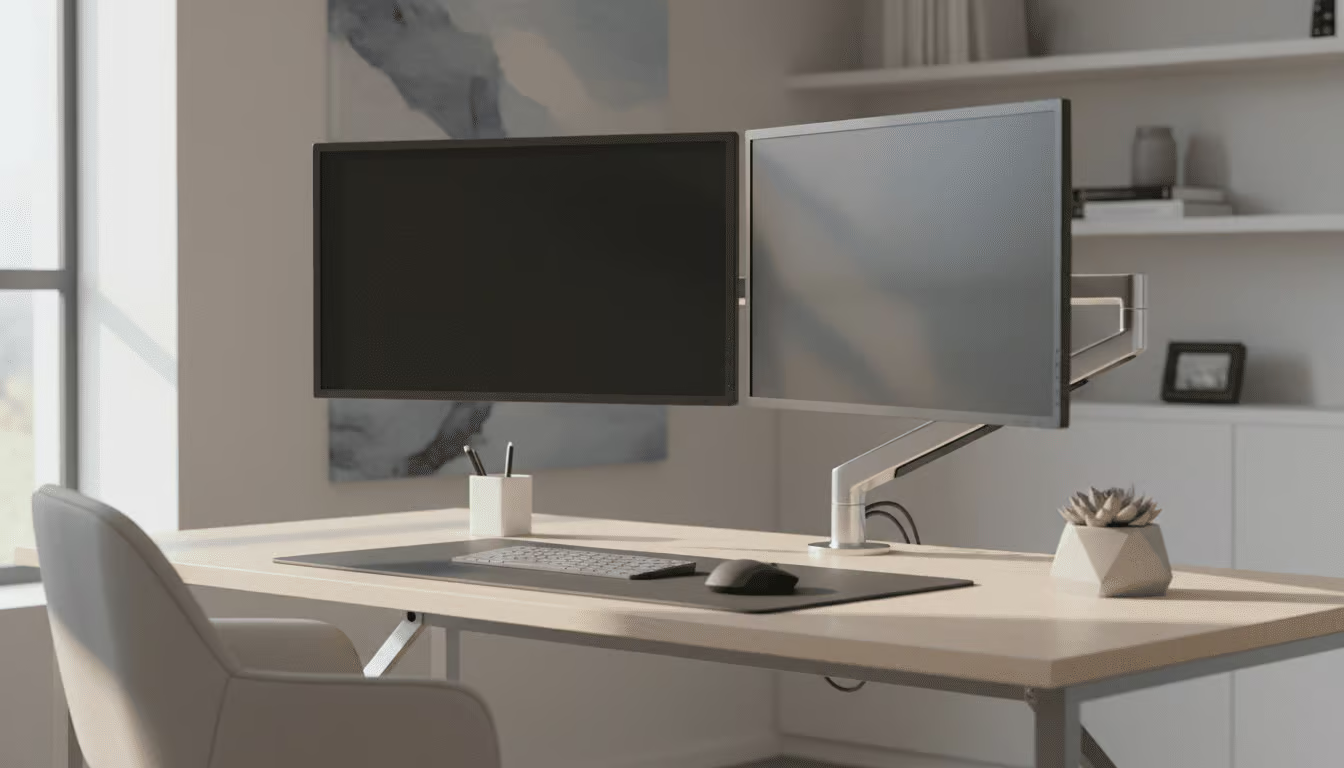
If you have ever watched someone work across two screens and thought — I need that — you are not alone. A dual monitor setup for home office use has become one of the most popular productivity upgrades among remote workers, freelancers, and professionals worldwide. And once you make the switch, going back to a single screen feels almost impossible.
But setting up two monitors is not just about plugging in a second screen and calling it done. The way you position them, the accessories you use, and the ergonomics of your setup all play a massive role in how much you actually benefit. This guide covers everything you need to know to do it properly.
Why a Dual Monitor Setup Changes Everything
The numbers speak for themselves. Studies have consistently shown that using two monitors can increase productivity by up to 42 percent compared to a single screen setup. When you can have your email open on one screen while working on a document on the other, or reference a spreadsheet while building a presentation, the constant switching and minimising disappears entirely.
For remote workers, the benefits go even further. You can keep your video call open on one screen while taking notes or sharing your work on the other. For designers, developers, and content creators, the extra screen real estate is not just convenient — it is transformational.
What You Need Before You Start
Before you dive in, make sure you have everything in place:
- A second monitor — aim for the same size and resolution as your primary screen for a seamless experience
- The right cables — HDMI, DisplayPort, or USB-C depending on your laptop or PC
- A dual monitor arm — this is the single most important accessory for a clean, ergonomic setup
- A graphics card or laptop that supports dual output — most modern devices do
- Enough desk space — two 27-inch monitors need at least 150cm of desk width
Step 1 — Choose the Right Monitors
For a home office dual monitor setup, consistency is key. Matching monitors in terms of size, resolution, and colour profile will make your experience far more comfortable. Mismatched screens — one bright, one dim, one 1080p and one 4K — create visual fatigue faster than you might expect.
The sweet spot for most home office users is two 27-inch monitors at 1440p resolution. They offer enough screen real estate without overwhelming a standard desk, and the image quality is sharp enough for both productivity and creative work.
If budget is a concern, two matching 24-inch 1080p monitors are a perfectly capable starting point and widely available at accessible price points.
Step 2 — Get a Dual Monitor Arm
This is non-negotiable. A dual monitor arm is the foundation of a clean, ergonomic, and professional-looking dual screen setup. Here is why it matters so much:
It lifts both screens off the desk surface, reclaiming valuable workspace underneath. It allows you to position each monitor at the exact height, angle, and distance your eyes need. It eliminates the neck strain that comes from screens sitting too low or too far apart. And it makes your entire setup look intentional and premium rather than thrown together.
Look for a dual monitor arm with independent adjustment on each arm, a gas spring mechanism for smooth repositioning, and internal cable management to keep your desk clean. These are available at excellent quality on AliExpress at a fraction of the price of branded alternatives.
Step 3 — Position Your Monitors Correctly
This is where most people get it wrong. Poor monitor positioning is one of the leading causes of neck pain, eye strain, and headaches among desk workers — and it is entirely avoidable.
Follow these ergonomic guidelines for your dual monitor setup:
- Height — the top of each screen should be at or just below eye level
- Distance — both monitors should be roughly an arm’s length away from your face
- Angle — tilt each screen back slightly, around 10 to 20 degrees, to reduce glare
- Side by side — place your primary monitor directly in front of you and the secondary slightly to the side at a gentle angle inward
If you use both screens equally, position them symmetrically with the join point directly in front of you. If one is clearly your primary screen, keep that one centred and angle the secondary at about 30 degrees to the side.
Step 4 — Manage Your Cables
Two monitors mean twice the cables — and without a plan, your desk will look like a disaster zone. Here is a simple cable management approach that works brilliantly:
- Use a dual monitor arm with internal cable routing to hide the monitor cables inside the arm itself
- Use a cable management box under the desk to hide your power strip and adapters
- Use velcro cable ties to bundle cables running together
- Use adhesive cable clips to route any remaining cables along the back edge of your desk
Spend thirty minutes sorting your cables once and you will never have to think about them again. The visual difference is dramatic.
Step 5 — Configure Your Display Settings
Once everything is physically set up, you need to tell your computer how to use the two screens.
On Windows: Right-click the desktop → Display Settings → Arrange your monitors to match their physical position → Set your primary display → Choose “Extend these displays”
On Mac: System Settings → Displays → Arrangement → Drag the displays to match their physical layout → Check the “Mirror Displays” box off
Take a few minutes to calibrate the brightness and colour temperature of both screens to match each other as closely as possible. This small step makes a big difference to how comfortable the setup feels during long work sessions.
The Best Accessories to Complete Your Dual Monitor Setup
Once your monitors are up and running, a few well-chosen accessories will take your setup to the next level:
- Monitor light bar — mount one on your primary screen to illuminate your desk without glare
- Desk pad — a large desk pad ties the whole setup together and protects your surface
- USB hub or docking station — consolidate all your connections in one place
- Cable management box — hide the power strip and adapters cleanly under the desk
- Ergonomic chair with lumbar support — your back will thank you during long sessions
Here Is a Quick Dual Monitor Setup Checklist
Before you consider your setup complete, run through this list:
✅ Both monitors at eye level
✅ Screens an arm’s length away
✅ Dual monitor arm installed and adjusted
✅ Cables managed and hidden
✅ Display settings configured and extended
✅ Brightness and colour matched between screens
✅ Primary monitor centred or positioned for your workflow
A dual monitor setup for home office productivity is one of the best investments you can make in your working life. The productivity gains are real, the ergonomic benefits are significant, and the satisfaction of having a clean, professional workspace is something you will feel every single day.
The key is doing it properly — the right monitors, the right arm, the right positioning, and the right accessories. Get those things right and you will wonder how you ever managed with just one screen.
At Kuykoo, we stock everything you need to build the perfect dual monitor home office setup, with free worldwide shipping on every order. Browse our collection and start building the workspace you deserve.
Two screens. Double the focus. Unlimited potential.